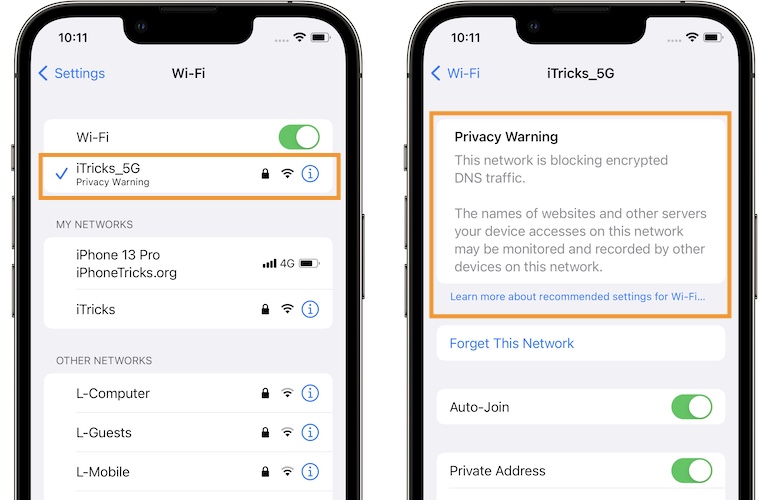
Since iOS 14, Apple has supported encrypted DNS, which in a nutshell makes it much harder for snoopers on the same Wi-Fi network as you to see the domain names of the websites you are visiting.
Your iOS device may sometimes display a strange privacy warning that says your network is blocking encrypted DNS traffic. A message like this can be quite concerning. But what does it mean exactly? Well, it means that other devices connected to the same network can see what sites you’re visiting on your iOS device and record that information. However, nobody can see what you’re doing on those websites as long as they use the SSL protocol.
If you see the warning message, don’t panic — it’s actually normal behavior if the network you’re connected to doesn’t meet the security standards recommended by Apple.
Go to your router settings, select Wi-Fi, and then click on your Access Point. Go to Advanced, select Security, and enable the WPA3 or WPA2/WPA3 security protocol.
Additionally, install the latest router firmware updates and enable all the radio options available on your device (Wi-Fi 2 to Wi-Fi 6). Don’t forget to enable all the bands that your router supports to improve your network capacity and performance. Set the Wi-Fi channel selection to Automatic.
If you’re comfortable digging into the settings on your Wi-Fi router using an app or a browser, Apple maintains a support article called “Recommended settings for Wi-Fi routers and access points” that’s worth referencing. If you set up your router in alignment with Apple’s recommendations, you shouldn’t see the encrypted DNS warning message on your iOS device again.
Disable Router Traffic Analyzer
If you’re using a traffic management program to analyze network traffic and track how each device is using your network, don’t be surprised if your iOS device keeps popping up those alerts.
For example, if you’re using an Asus router, disable Traffic Analyzer, and check if the alert persists. Go to your router’s admin page, navigate to Settings, and select Traffic and Device Identification. Then, turn off Deep Packet Inspection, and confirm your choice.